
Whether you are an email account user or an host administrator, you can change you email account password.
If you have lost your password and can not change your password, reach out to your administrator. If you are the administrator, contact us for support.
Changing Your Email Account Password in Webmail
Step 1: Access DirectAdmin
Begin by logging into your Webmail.
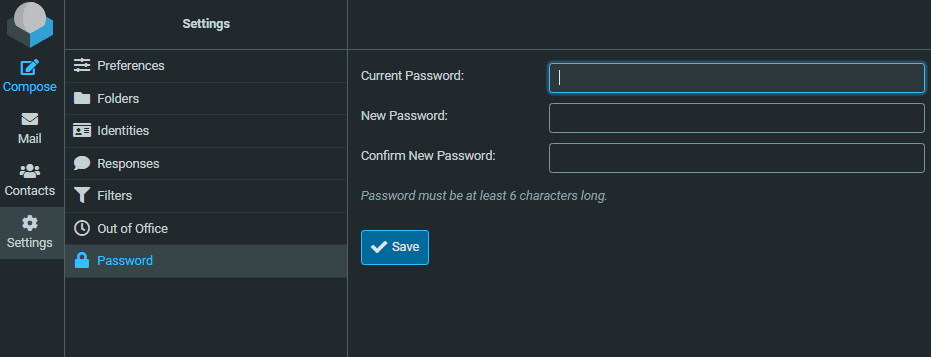
Step 2: Navigate to the Settings
Clicking on the “Settings” (GEAR icon), you will then choose the “Password” menu item.
Enter your current password.
Then enter your new password again.
Changing Your Email Account Password in DirectAdmin
Step 1: Access DirectAdmin
Begin by logging into your DirectAdmin control panel.
Step 2: Navigate to the Email Accounts Page
On the home screen, locate the “Email Accounts” feature. This section manages all email addresses under your domain. Clicking on it will display a list of all active email accounts.
Step 3: Select the Email Account
From the list of email accounts, select the one whose password you want to change.

Click on the three dots (…) at the very right and you will see a popup menu. Select “Change Password.”
Step 4: Enter a New Password
You’ll be prompted to enter a new password. Make sure it’s strong: include numbers, symbols, and both upper and lower case letters. Avoid simple passwords like “123456” or “password.” Once entered, save the changes.